Release Notes - 21/10/2026
This release introduces the new Split Property Teaser component and adds video support to the Linear Steps module.
1. Split Property Teaser: Highlight a Selected Property
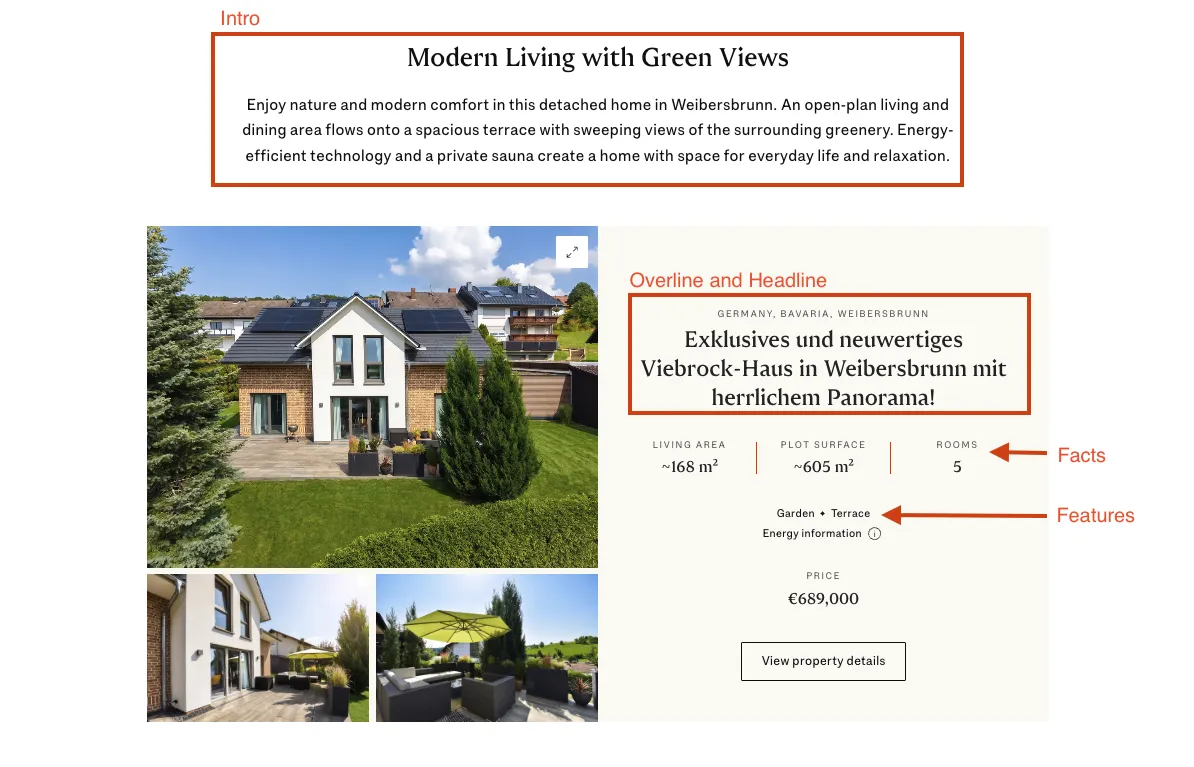
The Split Property Teaser presents one property with images, key details, and a direct link to its exposé.
To get started, add the component, enter the Property Display ID, and choose the image position. The property’s images and available details are filled automatically. Further customisation is optional.
When to use it
Use the Split Property Teaser to highlight a specific property within an article or content page. Visitors can explore its images, review the main details, and open the exposé for more information.
How to use it
Add the Split Property Teaser component to the page.
Enter the property’s Property Display ID. This identifies which property to display.
Set Media alignment to left or right to choose where the images appear beside the property details.
Check the preview to confirm that the correct property appears.
There is no need to upload property images or enter an exposé link separately. Both come automatically from the listing.
Adding an introduction
Use the optional Intro to add a headline and introductory text above the teaser. This introduces the section as a whole.
The Intro is separate from the property headline, which appears beside the images and uses the property’s listing title by default.
Customising the property text
Leave the following fields empty to use the listing’s existing text. Fill them only when different wording is needed for the page.
Overline override: Replaces the short location text above the property title.
Headline override: Replaces the property title shown beside the images.
Features override: Replaces the entire automatic feature list with custom features.
For Features override, enter up to three features, separated by commas.
For example: Garden, Pool, Terrace
The maximum length is 100 characters in total. Do not use line breaks, empty entries, or a comma at the end. Make sure the features accurately describe the property.
If the field is empty, up to three available features from the listing appear automatically.
Customising the key facts
The teaser automatically displays up to three key facts, depending on the available property information. These may include living area, plot area, and rooms or bedrooms.
Use Facts to add custom information. Each entry requires:
Label: What the fact describes, such as “Construction year”.
Value: The information to display, such as “2004”.
Custom facts appear after the automatic facts. A maximum of three facts is shown, so adding custom facts may replace automatic ones.
For example, if the teaser displays Living area, Plot area, and Bedrooms, adding Construction year changes the display to Plot area, Bedrooms, and Construction year. Adding three custom facts replaces all automatic facts.
Include units directly in custom values, such as 150 m². These values stay exactly as entered and do not change when visitors switch measurement units or currency. Translate custom labels, values, and other custom text for each page language where needed.
What appears automatically
Depending on the information available in the listing, the teaser shows:
Property images, location, and title.
The sale or rental price.
Up to three key facts and three features.
Energy information and a property status label, where available.
A direct link to the property’s exposé.
The teaser shows up to three preview images. Selecting an image opens a gallery with up to ten property images.
If the teaser does not appear
Check that the Property Display ID is correct and that the property is publicly available and has images.
The entire teaser, including its optional Intro, is hidden if the property cannot be found, has no images, or is restricted.
2. Linear Steps: Video Support
The existing Linear Steps module now supports videos alongside images. Each step can show an image or a video to explain a process, demonstrate a tool, or show an animation.
How to use it
Open the Linear Steps module on the page.
Select the step to update.
Set Media Type to video.
Select the video in the Video field.
Check the preview and open the step to confirm that the video displays and plays correctly.
Repeat these steps for any other steps that should show a video. Images and videos can be combined within the same module.
How videos behave
Videos play automatically without sound when their step is visible.
Videos repeat while the step remains visible.
A play/pause button allows visitors to pause or resume playback.
Playback pauses when the step is no longer visible.
A video paused by a visitor stays paused when they return to that step.
Videos use the same display area as images, keeping the layout consistent.