&w=1920&q=75)
More tips
As a premium brand with high standards in content and technical excellence, it is essential that our multilingual content is structured correctly. Setting up Alternate Versions in Storyblok ensures proper language handling for users and search engines.
&w=1920&q=75)
Alternate versions are required for:
hreflang implementation (SEO & correct regional targeting)
Language switcher functionality (UX & navigation)
Consistent content governance across markets
Incorrect setup can lead to SEO issues, duplicate content problems, and a poor user experience. Therefore, following this guideline is mandatory.
Search engines use the hreflang attribute to understand:
Which language a page is written in
Which regional version should be shown to users
That similar pages in different languages are not duplicate content
If alternate versions are not properly connected:
Google may rank the wrong language page
Pages may compete against each other
Organic performance may decrease
Correct linking in Storyblok ensures that the technical implementation of hreflang works automatically.
Our language switcher depends on properly linked alternate stories.
When alternate versions are set up correctly:
Users are redirected to the equivalent page in another language
The content context remains consistent
Navigation feels seamless and professional
If not configured properly:
Users may land on the homepage instead of the corresponding page
The switcher may not work at all
The experience feels broken and unprofessional
Make sure:
Use the same URL structure in every language.
The page hierarchy and slug should follow the same pattern (only translated where required), so the pages clearly match across languages.
Use the same content structure for all languages.
Every language version should use the same content model (same components and fields). Do not add, remove, or change too many fields in one language only.
Consistency is crucial for system logic and SEO performance.
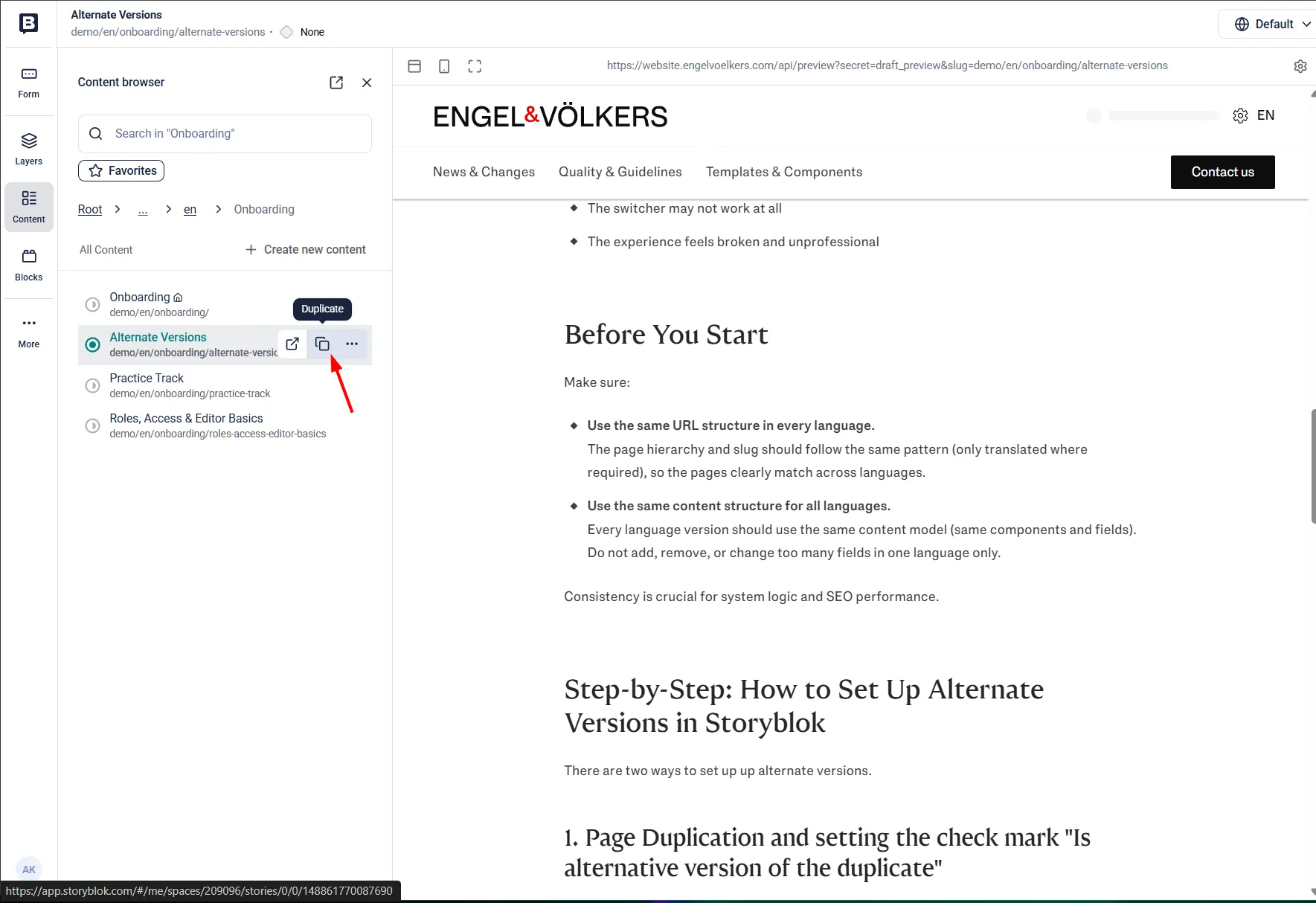
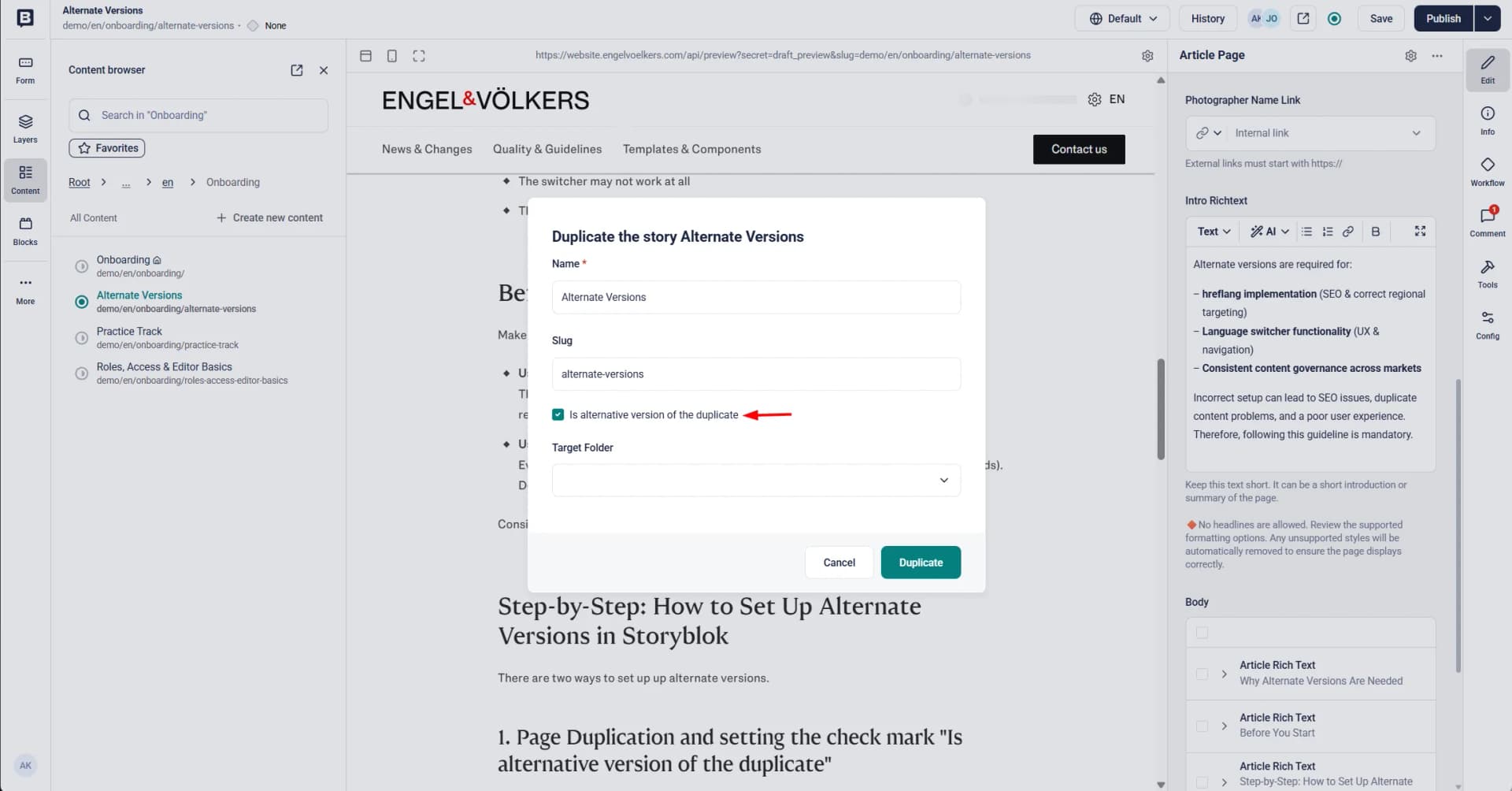
There are two ways to set up up alternate versions.
Create your story in the default language (e.g., EN).
Fill in all required content fields.
Save and review the story.
Click duplicate and set the check mark "Is alternative version of the duplicate"
Select the target folder in the other language.
Work on the page.
Repeat this step for the other language versions (if they exist)
Before publishing:
Open all language versions.
Check in the story settings that they are connected as alternate versions.
Ensure the correct language is assigned.
Verify that the slug structure matches the language folder.
If the connection is missing, the hreflang logic will fail.
Then publish all pages.
Your page exists in 4 languages, so it exists as 4 separate stories in Storyblok:
Page A (Language 1)
Page B (Language 2)
Page C (Language 3)
Page D (Language 4)
Important: You cannot build the network by adding multiple alternate links on one story. The setup works like a chain: you always connect the next language to the same “reference” page (Page A). Storyblok then propagates the relationships so all pages “see” each other.
Open Page B
In the Page "Confiq" (right-side tool bar), scroll down to Alternate Versions, enter the slug of Page A → Click "Save story configuration"
Result: A and B are linked (both pages show each other)
Open Page C
In Alternate Versions, enter the slug of Page A → Save
Result: C now shows A and B (the chain expands)
Open Page D
In Alternate Versions, enter the slug of Page A → Save
Result: D now shows A, B, C — and when you open A, B, C, they will also show all 4 languages
Publish all pages.
In a story, you can only store ONE direct Alternate Version reference.
Example:
If Page A is linked to Page B and you then add Page C, Storyblok will replace the link:
B is removed
only C remains
That’s why you always link each additional language (C, D, …) to Page A.
Removing a Page from the Alternate Versions Chain
Editing the Alternate Versions of published pages can unintentionally break the entire chain and affect hreflang and language switcher functionality. Before making any changes, please contact the Website Admins in the Google Chat channel. We will support you and ensure the update is handled correctly.
You may also be interested in
More tips