- 3 min read
How to label AI-generated assets in Storyblok
New transparency requirements under the EU AI Act have applied since 2 August 2026.

To support consistent implementation across Engel & Völkers websites, editors must identify AI-generated and AI-modified content correctly in Storyblok.
This applies to images and videos used directly on international websites. It also applies to downloadable assets, such as market reports, brochures and other PDF documents.
Which assets need AI information?
All AI-generated or AI-modified assets must:
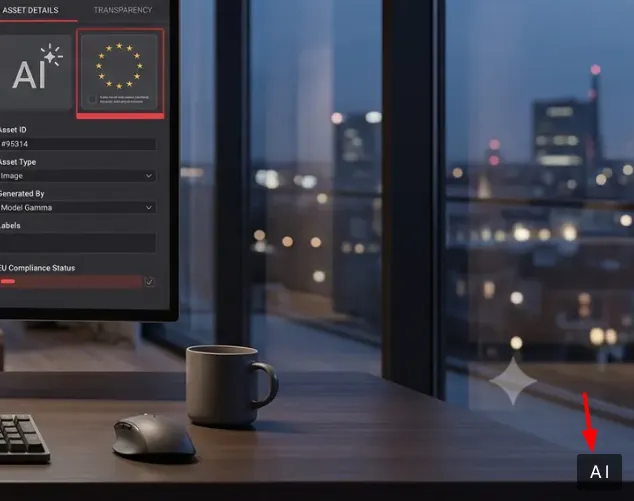
display an AI badge
include the required metadata description
This includes content that was created entirely with an AI tool as well as existing content that was substantially modified using AI.
For downloadable images and PDFs, the AI badge and metadata must be added to the file before it is uploaded to Storyblok.
For images and videos displayed on the website, you do not need to add the AI badge manually: entering Yes in the asset’s AI-generated field automatically displays the label.
How to add AI information in Storyblok
Follow these steps whenever you upload a new image or video or review an existing asset:
Open the Asset Library in Storyblok.
Upload a new asset or open an existing asset.
Go to the asset details.
Scroll down to the AI-generated field.
Enter the appropriate value:
Yes if the image or video was created or modified using AI.
No if the image or video was not created or modified using AI.
Save your changes.
Use only Yes or No, with the spelling and capitalisation shown above. Do not enter alternatives such as “yes”, “AI”, “true” or “not applicable”.
What happens when you enter Yes?
When Yes is entered in the AI-generated field:
an AI label is automatically displayed on the image or video
the image alt text is automatically extended with the note “AI-generated image”
This makes the use of AI visible to website visitors and ensures that the relevant asset information is provided consistently.
&w=1920&q=75)
How to refresh an asset on an existing page
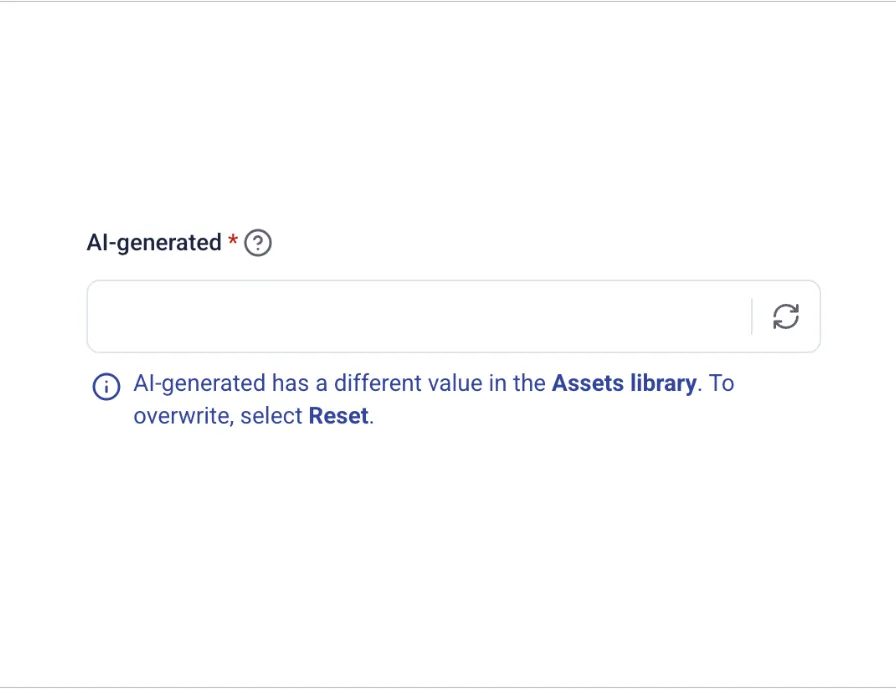
Updating an asset in the Asset Library may not immediately update its information on pages where it is already being used.
When the AI label is missing from an existing page, refresh the asset reference:
Open the relevant page in Storyblok.
Select the image or video asset.
Click Reset.
Check that the asset fields have refreshed.
Save and publish the page if required.
The updated AI-generated value will then be applied to the asset reference on the page.
Example
A content editor creates an illustration of a residential property using a generative AI tool.
The editor must:
ensure that the downloadable file contains the required AI information before uploading it, where applicable
upload the asset to the Storyblok Asset Library
enter Yes in the AI-generated field
confirm that the AI label is displayed
check that the alt text includes “AI-generated image”
For a conventional property photograph that has not been created or modified using AI, the editor must enter No.
Editor checklist
Before publishing an image, video or downloadable PDF, confirm that:
the asset has been checked for AI generation or AI modification
the AI-generated field contains exactly Yes or No
AI-generated assets display the correct AI badge
the required metadata description is included
downloadable assets were prepared before being uploaded
existing page references have been reset when updated information is not displayed
Please complete the AI-generated field for every new image and video upload. Correct and consistent asset information helps Engel & Völkers meet its transparency requirements across international websites.