• 5 min read

Overview: Data visualization in Storyblok

Data visualization allows you to display structured information—such as prices, trends, or comparisons—in a clear and visual way using charts. On the Engel & Völkers website, this is typically used for real estate insights like market trends, price developments, or regional comparisons.

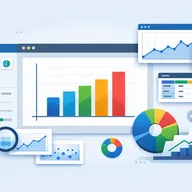
Illustration of people analyzing charts on screens, featuring graphs, pie charts, and data presentation in a digital workspace setting.

This guide introduces how data visualization works in Storyblok, what editors are responsible for, and what to expect when working with charts.

Table of Content

  1. What data visualization is and where it is used

  2. How charts work in Storyblok

  3. High-level system overview

  4. Key principles to understand

  5. What you will learn in this guide

What data visualization is and where it is used

Data visualization transforms raw data into visual formats like line charts, bar charts, or similar components. Instead of explaining trends in text, charts help users quickly understand patterns and comparisons.

Typical use cases:

  • Property price development over time

  • Comparison of average prices across locations

  • Market trends for specific property types

These charts are embedded directly into Storyblok content pages and are configured by editors.

How charts work in Storyblok

Charts in Storyblok are not created manually point by point. Instead, they are powered by external data and controlled through predefined components.

As an editor, you will:

  1. Select a chart component in Storyblok

  2. Link it to a data source (Google Sheets)

  3. Configure basic settings (e.g. titles, labels, display options)

The actual data (numbers, categories, timelines) comes from a structured spreadsheet, not from manual input in Storyblok.

Read more about how to set up dashboards, charts and filters.

High-level system overview

To understand the workflow, it helps to see the system as two connected parts:

Storyblok configuration

  • Where you build and edit content pages

  • Where charts are added and configured

  • Controls how the chart looks and appears on the page

Google Sheets (data source)

  • Stores the data behind each chart

  • Contains structured tables used by the chart

  • Is maintained separately from Storyblok

In simple terms:
Storyblok defines how the chart looks, while Google Sheets defines what data is shown.

Key principles to understand

Before working with data visualization, keep these core principles in mind:

Structured data is required

Charts only work if the data follows a clear structure (e.g. columns for dates, values, categories).

  • No free text or mixed formats

  • Consistent labeling is essential

  • Small formatting issues can break the chart

Read more about data preparation in Google Sheets, including access and setup, data structure for different chart types, and how to avoid data issues.

Getting started

Prepare your data for visualizations

Follow these essential guidelines to get started with data visualizations: prepare your data in Google Sheets, store files in the designated folder, set up access, and structure your data to match different chart types.

  • Spreadsheet transforming into various analytics charts, including bar and pie charts, with data preparation and processing symbols.

    Google Sheets: data preparation

    This guideline helps content editors structure datasets correctly in Google Sheets so they can be used reliably for data visualizations on the Engel & Völkers website. Well-prepared data ensures that charts display correctly, update smoothly, and remain easy to maintain.

  • Colorful infographic showing bar graphs, a pie chart, and a rising line graph on a gradient background with gears and files.

    How to structure data for different chart types

    Different chart types need different data structures. Even if your sheet is clean and technically valid, a chart may still not work if the columns are arranged in the wrong way.

Limited flexibility by design

The system is intentionally structured to ensure consistency and performance.

  • You cannot fully customize chart behavior

  • Only predefined chart types and settings are available

  • This ensures charts remain reliable and consistent across pages

You may also be interested in

You may also be interested in

You may also be interested in

You may also be interested in