- 3 min read
How to upload OG images in Storyblok
Open Graph (OG) images play an important role in how your content appears when shared on social media platforms such as LinkedIn, Facebook, or WhatsApp. This guide explains what OG images are, why they matter, and how to upload them correctly in Storyblok.
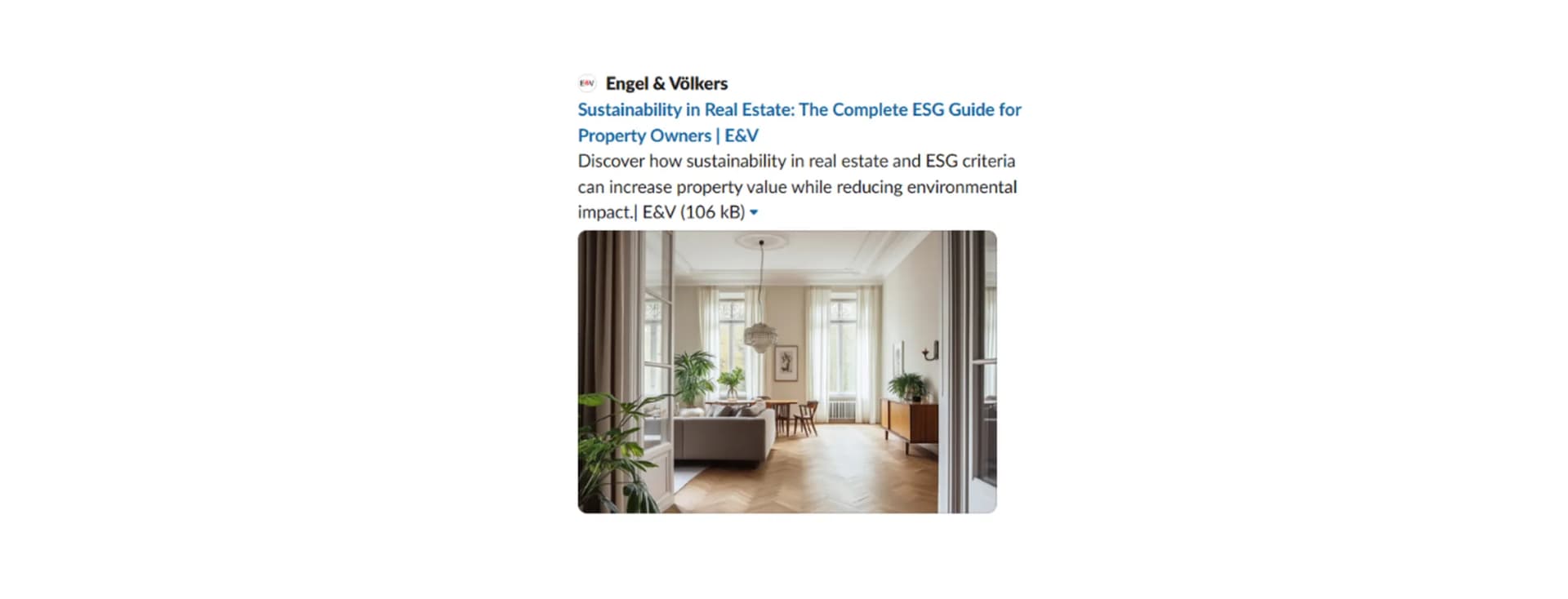
What is an OG image and why is it important?
An OG image is the preview image that appears when a page link is shared on social media.
Instead of showing a random image from the page, the OG image allows you to control exactly what users see. This improves:
Click-through rates
Brand consistency
Visual quality of shared content
Real estate example:
If you share a property page:
With a dedicated OG image → users see a polished hero image of the property
Without an OG image → a generic fallback (Shopfront) is shown
What happens if no OG image is uploaded?
If you do not upload a dedicated OG image:
The system will automatically use the Engel & Völkers Shopfront image as a fallback
This ensures every page still has a share image
However, it is less tailored and less engaging than a custom image
Recommendation: Always upload a dedicated OG image for important pages (e.g. properties, locations, campaigns).
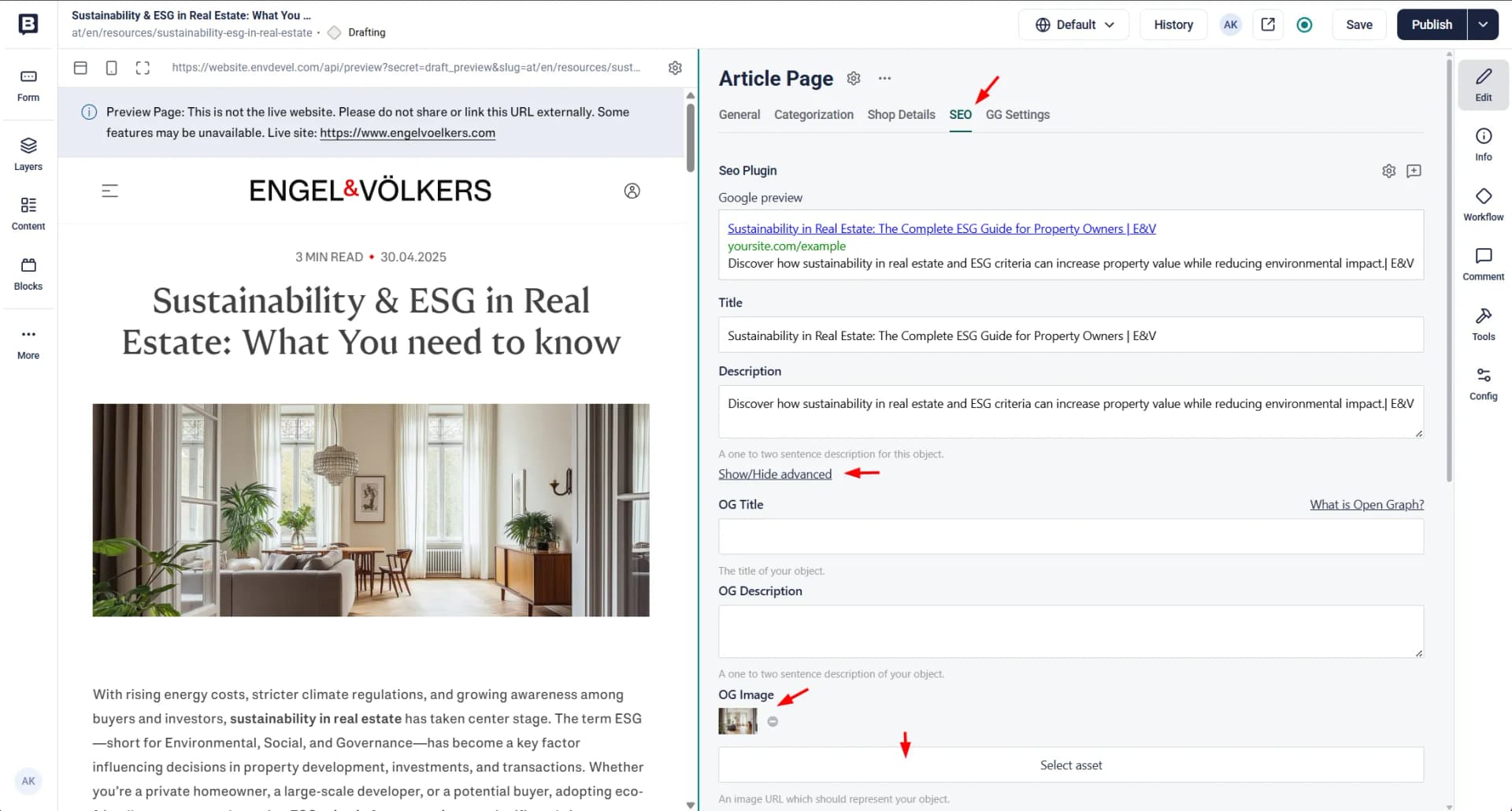
How to upload an OG image in Storyblok
Follow these steps in the Storyblok editor:
Step-by-step
Open your content page in Storyblok
Navigate to the SEO tab
Click “Show/Hide advanced”
Scroll to the “OG Image” section
Click “Select asset”
Upload a new image or choose one from the asset library
Save and publish your page
OG image guidelines
To ensure consistent display and good performance across platforms, follow these requirements and recommendations when uploading OG images in Storyblok.
Platform recommendations (general best practice)
Social platforms such as Facebook, LinkedIn, and Twitter recommend:
Optimal size: 1200 × 630 px
Minimum size: 600 × 315 px (smaller images may appear less sharp)
Aspect ratio: 1.91:1
File size: up to 200 KB
Formats:
PNG (best for text or logos)
JPG (best for photography)
Safe zone: Keep important content (text, logos) centered to avoid cropping
Best practices for real estate content
To get the most out of your OG images:
Use high-quality property images (e.g. exterior or living area)
Avoid text-heavy visuals
Ensure good lighting and composition
Keep branding subtle and consistent
Good examples:
A bright, well-framed villa exterior
A stylish interior shot of a living room
A scenic view from a property terrace
Bad examples:
Low-resolution or blurry images
Images with too much text overlay
Cropped or distorted visuals
Generic stock images unrelated to the listing
Summary
OG images define how your page looks when shared on social media
If no image is uploaded, the Shopfront fallback will be used
You can upload an OG image via:
SEO tab → Show/Hide advanced → OG Image → Select assetAlways follow size and dimension guidelines to ensure proper display
Using dedicated OG images consistently helps present properties and locations in a more professional and engaging way across all channels.