How to prepare images for the web
Request web-ready images, check them before upload and compare the colours in Storyblok.
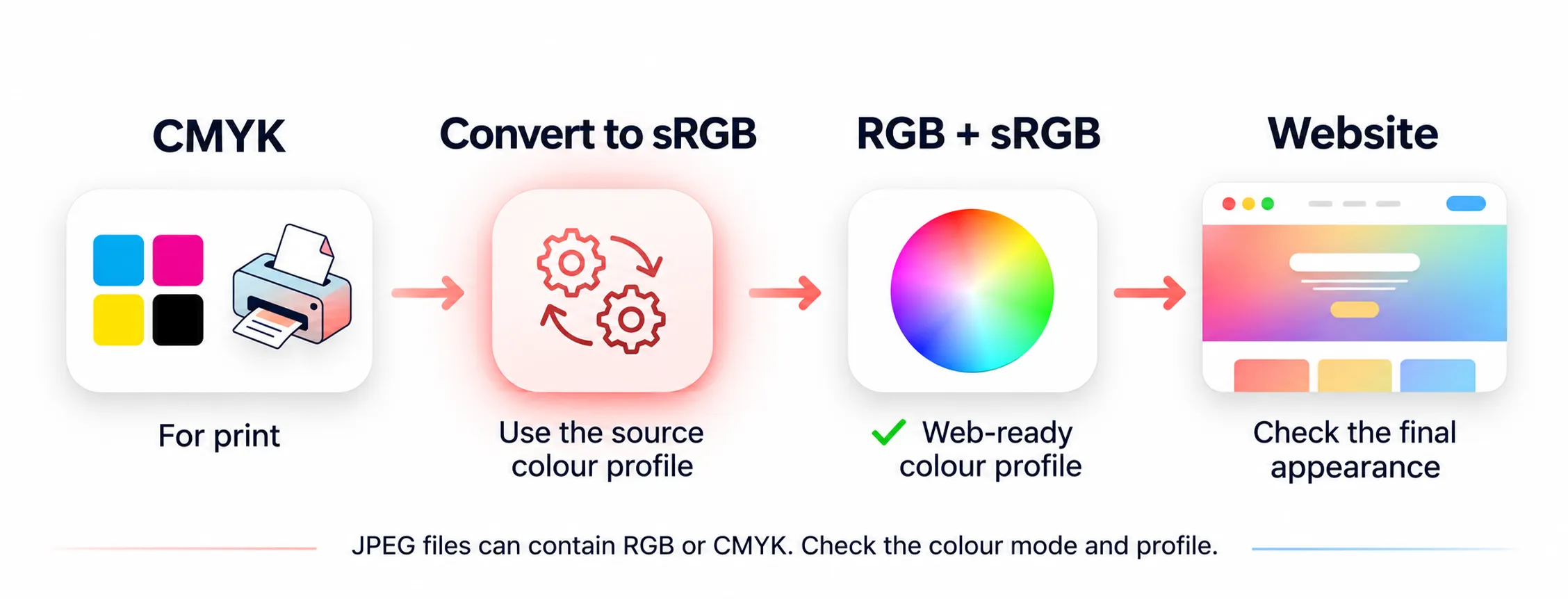
Images prepared for print can look different on a website. Ask for a web-ready sRGB version, check the file and compare it after upload. The steps below explain what to ask for and what to do if you are unsure.

sRGB web versions on the left, CMYK originals on the right. The red arrow connects the same living-room image: compare the pink banner. This example shows a colour difference in the Storyblok preview. The arrow marks the comparison, not a conversion direction.
1. Request the web version
The easiest and safest option is to ask your image supplier or designer for a web-ready version. You do not need Photoshop or an AI tool to follow this workflow.
Copy this request:
Please provide the images as web-ready JPEGs in RGB mode, converted to sRGB IEC61966-2.1 with the colour profile embedded. Please do not supply CMYK print files.
Also ask for the dimensions and crop required by your website component, suitable file sizes and the usage-rights information.
2. Check before uploading
A file ending in .jpg is not automatically ready for the web. JPEGs can contain RGB or CMYK data. A colour profile tells software how to display the colours; for this workflow, use an embedded sRGB profile.
On Windows
Download the original image, not a screenshot or browser preview.
Right-click the file in File Explorer and choose Properties → Details to check its dimensions and file size.
Windows file properties do not reliably confirm an embedded sRGB profile. If your supplier has not confirmed it, ask for the web export above. You can also use the optional Photoshop or AI check below.
On a Mac
Download the original and open it in Preview.
Choose Tools → Show Inspector or the Info button. Look for the colour model and profile, where available.
You are looking for RGB with an sRGB profile. If the information is missing or unclear, ask your supplier for the web export above. Close the file without saving changes.
What to do with the result
RGB with a verified embedded sRGB profile: continue to the upload check. Dimensions, crop, file size and usage rights still need checking.
RGB with another known profile, such as Adobe RGB or Display P3: ask your supplier or designer to convert it to sRGB and embed the sRGB profile in a separate copy.
RGB with no profile, an invalid profile or an unclear result: do not assume it is sRGB. Ask your supplier to confirm the source colour space and provide a correctly converted sRGB export.
CMYK with a known, valid profile: ask for a conversion from that source profile to sRGB, with sRGB embedded.
CMYK with no profile or an unclear profile: request a new sRGB export or the correct source profile. Do not guess.
Conversion is not the same as assigning a profile. Simply renaming a file, removing its profile or assigning sRGB does not reliably correct its colours. Keep the original unchanged.
3. Upload and compare
Upload the web version as a new asset and complete the required source, licence and alt-text fields.
Use that new asset on the page. Compare the Storyblok asset and page previews with the approved sRGB version on the same screen.
Check recognisable colours such as logos, coloured banners, skin tones and neutral walls. If the colours differ noticeably, stop and clarify before publishing.
After your normal review and publication process, check the live page too. An asset preview alone does not verify every website rendition.
If the colours still look wrong
First check that the page uses the intended new asset. Ask your image supplier or designer to confirm the colour profile if you are unsure. For a website issue, include the original file, the Storyblok asset link, page URL and comparison screenshots in your support request, together with any known colour-mode and profile details.
An older cached image can be a separate issue. Uploading the corrected file as a new asset and replacing the reference can help distinguish an old cached version. A new filename alone does not fix a colour-profile problem.
What the terms mean
CMYK uses cyan, magenta, yellow and black and is mainly used for printing. RGB uses red, green and blue for screens. sRGB is a widely supported colour space for websites. The embedded colour profile helps software interpret the image’s colour values.
Optional: detailed check in Photoshop
Open the original. If prompted, preserve the embedded profile. Do not convert to the working space or discard the profile during this check.
Note any missing-profile warning. Do not assign a profile just to remove the warning.
Open Image → Mode and check the current mode without choosing another one.
In the menu beside the document status display at the bottom, select Document Profile and note the name.
Close without saving changes.
Photoshop settings can convert images when opening them. If you are unsure, ask your designer to check the original with embedded profiles preserved and profile warnings enabled.
Adobe: Manage colour profiles when opening images
Adobe: Use the Info panel and document status bar
Optional: check a folder with AI
Use a company-approved tool that can inspect the original file bytes and metadata. Depending on the tool, provide an accessible folder, an approved storage connection or a ZIP containing the originals. A folder link or screenshots alone may not give it access to the original data. Do not make the folder public.
Prompt to copy
Please audit the original image files in [FOLDER LINK / ATTACHED ZIP] for use on our website.
This is a read-only inspection. Do not modify, convert, rename, delete, upload elsewhere or publish any files.
First confirm that you can read the original file bytes and embedded metadata, not just thumbnails or previews. If you cannot, explain what access or files you need. Do not infer colour mode or profiles from how images look.
Inspect every image and report:
Filename and actual file format.
Pixel dimensions and file size.
Colour mode, such as RGB, CMYK or grayscale.
Whether an ICC profile is embedded, and its exact name and colour space when readable.
Whether the profile is consistent with the image’s colour mode.
Missing, invalid or conflicting profile information.
Recommended next step.
Classify each file as:
Meets the colour-profile requirement: RGB with a verified embedded sRGB profile.
Needs conversion: A known, valid source profile is present, but the file is CMYK or uses another colour space.
Needs clarification: Profile absent, invalid, conflicting or not verifiable.
Do not assume RGB means sRGB. Do not treat an EXIF “sRGB” label alone as proof of an embedded ICC profile. Do not guess a missing CMYK profile.
List files you could not inspect and explain why. State how many files were found, checked and skipped, and whether subfolders were included. Name the inspection tools and method.
Finish with a short summary and practical next steps. Do not guarantee colour fidelity or complete web readiness: dimensions, crop, compression, usage rights and actual website output need separate checks.