- 3 min read
Sample real estate dashboard
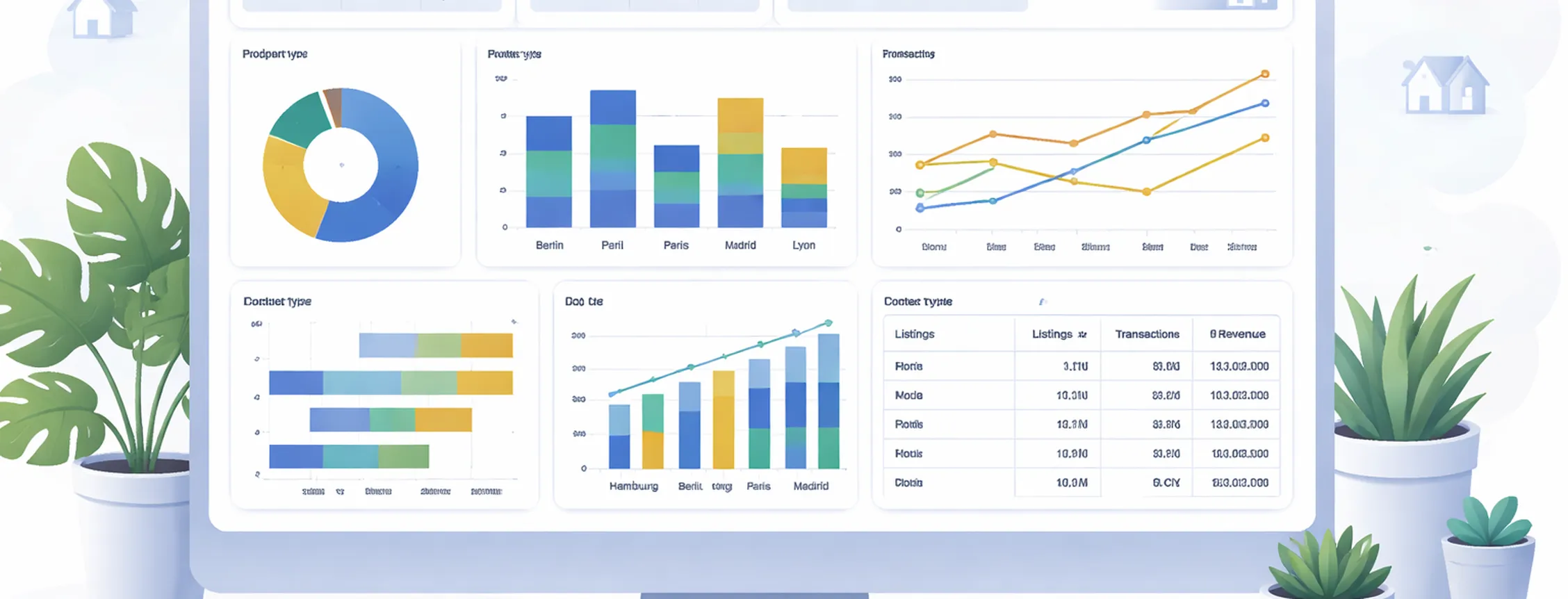
This page shows how to build a complete dashboard using a single data source. It demonstrates all available chart types and helps you understand how filters and charts work together.
What this dashboard demonstrates
This dashboard combines multiple chart types in one place. It shows how different perspectives on the same data can support a clear and consistent story.
You will learn how to:
connect one data source to multiple charts
use filters that work across all components
combine different chart types without creating conflicts
structure content in a way that remains easy to maintain
Sample Dashboard
| # | City | Property Type | Listings | Transactions | Revenue |
|---|---|---|---|---|---|
| 1 | Hamburg | Apartment | 120 | 45 | 22500000 |
| 2 | Berlin | House | 80 | 30 | 18000000 |
| 3 | Munich | Villa | 60 | 22 | 25000000 |
| 4 | Paris | Apartment | 140 | 50 | 30000000 |
| 5 | Lyon | House | 90 | 35 | 14000000 |
| 6 | Madrid | Apartment | 110 | 40 | 16000000 |
| 7 | Barcelona | Villa | 70 | 25 | 27000000 |
| 8 | Hamburg | House | 100 | 38 | 17500000 |
| 9 | Paris | Villa | 65 | 20 | 29000000 |
| 10 | Madrid | House | 85 | 32 | 19000000 |
Data source
All charts on this page use the same dataset. This ensures consistency and allows filters to apply across the entire dashboard.
The dataset includes:
locations such as country and city
property types and segments
metrics such as listings, transactions, and revenue
a time dimension for trend analysis
Make sure the data is clean and complete. Inconsistent or missing values can affect multiple charts at once.
Filters
This dashboard uses three filters to control the data:
Country (multi select)
Property type (multi select)
Segment (single select)
These filters are shared across all charts. Avoid adding filters that only affect a single chart, as this can lead to empty states and a confusing user experience.
Chart overview
Each chart highlights a different aspect of the data:
Pie chart shows the distribution of property types
Bar chart compares transactions across cities
Floating bar chart visualizes the range between listings and transactions
Line chart displays trends over time
Composed chart combines volume and revenue in one view
Table provides a detailed breakdown
Together, these charts create a balanced overview without overwhelming the user.
Layout considerations
Arrange charts in a way that supports readability and comparison.
Use an even number of charts where possible
Place related charts next to each other
Use full-width components like tables to provide detail at the end
Start with high-level insights and move toward more detailed views
Maintaining the dashboard
Since all charts rely on the same data source, updates should be made carefully.
Keep naming consistent across dimensions and values
Avoid adding unnecessary complexity
Check how changes affect all charts and filters
Update the data regularly to keep the dashboard relevant
A well-structured dataset ensures that the dashboard remains stable and easy to extend.