
How to structure data for different chart types
Even well-prepared charts can fail if the underlying data contains small but important mistakes.

This article shows the most common issues editors run into when working with Google Sheets, from duplicate headers to numbers stored as text, and explains how to avoid them before publishing.
Most chart issues are caused by a small number of avoidable data mistakes.
If two columns use the same name, the sheet becomes invalid.
Fix: Rename columns clearly and specifically.
It is not enough for a value to look like a number. It must be a numeric cell so that aggregation can be performed. An exception is values in a table, since aggregation is not performed there.
Bad
"7200"
Good
7200
Fix: Check formatting and remove apostrophes or text-only formatting.
The backend imports every row after the header as data.
So rows such as these will cause problems:
Total
Notes
Source: internal analysis
Units: EUR
Fix: Keep these outside the dataset tab or remove them entirely.
A metric column should not contain entries like:
120
n/a
-
unknown
Fix: Leave the cell empty if a value is missing, or correct the source data.
Dimension labels should stay clear and consistent.
Avoid
Berlin
berlin
BERLIN
Berlin
These may be treated as different values depending on usage.
Fix: Use one consistent naming style.
Since there is no automatic sorting, charts may appear in an unexpected order.
Fix: Sort the dataset in Google Sheets before publishing.
| City | Property type | Listings |
|---|---|---|
Hamburg | Apartment | 80 |
Hamburg | House | 40 |
Berlin | Apartment | 90 |
Berlin | House | 7,200 |
Why this works:
one clear header row
all headers are unique
dimensions and metrics are easy to identify
number columns contain real numbers
no helper rows or merged cells
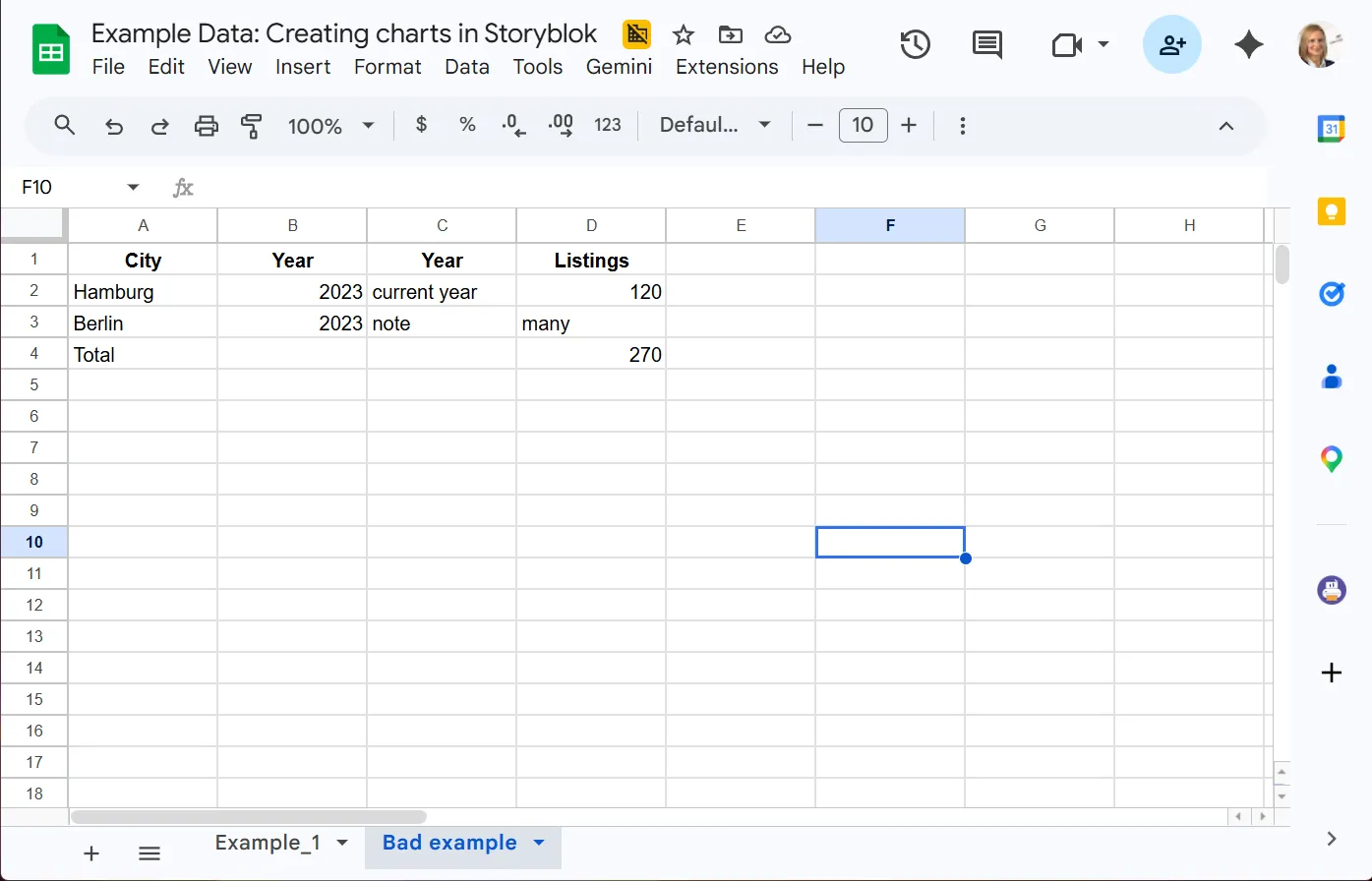
Why this fails:
duplicate headers
mixed content types
note-like content inside the dataset
totals row included as if it were data
Before handing over or using a Google Sheet for a chart, check:
the first row contains the headers
every header is unique
every following row is real data
dimensions are text labels
metrics are numeric cells
filters use string values where needed
chart-specific requirements are fulfilled
the sheet is sorted correctly
labels are stable and consistent
You may also be interested in
&w=1920&q=75)

You may also be interested in






You may also be interested in


&w=1920&q=75)
&w=1920&q=75)


You may also be interested in