- 5 min read
Creating a dashboard
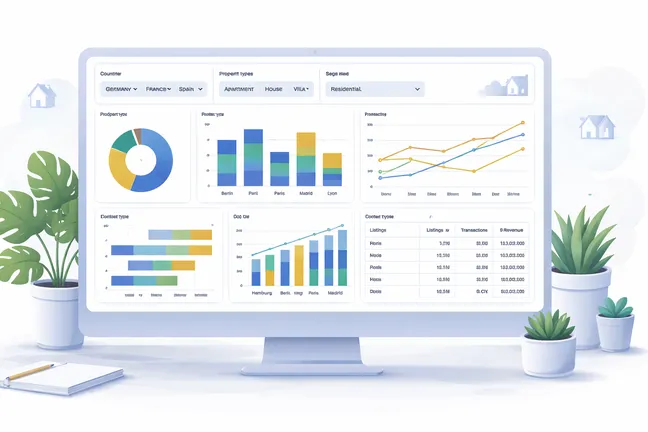
Dashboards help editors and stakeholders quickly understand performance data at a glance. They combine multiple charts and filters into one view, making it easier to monitor trends such as property views, lead generation, or market activity.

A well-structured dashboard answers a clear question, for example:
“How are luxury properties performing this month?”
“Which regions generate the most buyer inquiries?”
What is a DV dashboard
A DV Dashboard (Data Visualization Dashboard) is a structured collection of:
Charts (visual representations of data)
Filters (controls to refine what data is shown)
It allows users to interact with data without needing technical knowledge.
Example (real estate context)
A dashboard for “Residential properties in Barcelona” could include:
A line chart showing property views over time
A bar chart comparing inquiries per district
Filters for property type (apartment, villa) and price range
How to add a dashboard in Storyblok
Follow these steps to create a new dashboard:
Go to the page where you want to add the dashboard.
Click Add block
Select the Dashboard content type (DV Dashboard)
Add a title that clearly describes the purpose of the dashboardExample: “Luxury property performance – Paris”
Add at least one chart component
Configure filters if needed
Save and publish
Best practice for naming dashboard titles
Be specific and user-focused
Include location, segment, or goal
Good example:
“Rental demand trends – Lisbon city center”
Bad example:
“Dashboard 1”
Dashboard limitations
When creating dashboards, keep the following constraints in mind:
Structural limits
Maximum number of charts: 10
Maximum number of filters: 3
At least one chart is required
Layout behavior on desktop
Charts are arranged in a two-column grid
If only one chart is used, it spans the full width
If two charts are used, they are displayed side by side
If an odd number of charts is used (e.g. 3), the last chart will appear alone in a new row, leaving empty space on the right
Recommendation:
use an even number of charts to create a balanced layout
Special case: tables
Table components always span the full width
They are not displayed side by side with other charts
Filter usage guidance
Filters should apply to multiple charts within a dashboard
Avoid adding filters or filter values that only affect a single chart
If a filter cannot be applied to a chart, the chart will display “No data available”
This leads to a poor user experience and should be avoided
Recommendation:
only use filters when they are relevant for most or all charts in the dashboard
Practical implications
Avoid overcrowding the dashboard
Focus on clarity over quantity
Each chart should serve a clear purpose
When to use multiple dashboards vs one
Choosing the right structure improves usability significantly.
Use a single dashboard when:
The topic is focused and coherent
All charts answer the same main question
Filters apply to all charts consistently
Example:
“Buyer inquiries for new developments in Dubai”
Use multiple dashboards when:
You have different audiences (e.g. marketing vs sales)
The data becomes too complex or crowded
Charts require different filters or logic
You are covering separate topics
Example split:
Dashboard 1: “Website traffic for property listings”
Dashboard 2: “Lead conversion and agent performance”
Do’s and Don’ts
Do’s
Use clear, descriptive titles
Start with a key chart that answers the main question
Keep dashboards focused on one topic
Use filters that are relevant across multiple charts
Test the dashboard from a user perspective
Don’ts
Do not overload the dashboard with too many charts
Do not mix unrelated data in one dashboard
Do not use vague titles or labels
Do not add filters that only apply to a single chart
Do not create dashboards without a clear purpose
You may also be interested in
Summary
A DV Dashboard is a powerful way to present real estate data in a clear and interactive format. By structuring dashboards thoughtfully, limiting complexity, and focusing on user needs, editors can create tools that support better decision-making across Engel & Völkers teams.
You may also be interested in
 Updating and maintaining data
 Sorting and color assignment in charts
 Aggregation methods for chart metrics
 Working with filters
- 5 min.
 Creating charts
- 5 min.
You may also be interested in
 Common data issues and how to avoid them
 How to structure data for different chart types
&w=1920&q=75) Preparing data in Google Sheets for data visualizations
Preparing data in Google Sheets for data visualizations File storage, access and setup
You may also be interested in
 Tables
- 5 min.
 Composed charts (line and bar combination)
&w=1920&q=75) Line Charts
Line Charts- 5 min.
&w=1920&q=75) Pie charts
Pie charts- 5 min.
 Floating Bar Charts
- 5 min.
 Bar Charts
- 5 min.
You may also be interested in
 Charts and SEO: how to make data visible and valuable