- 5 min read
Working with filters
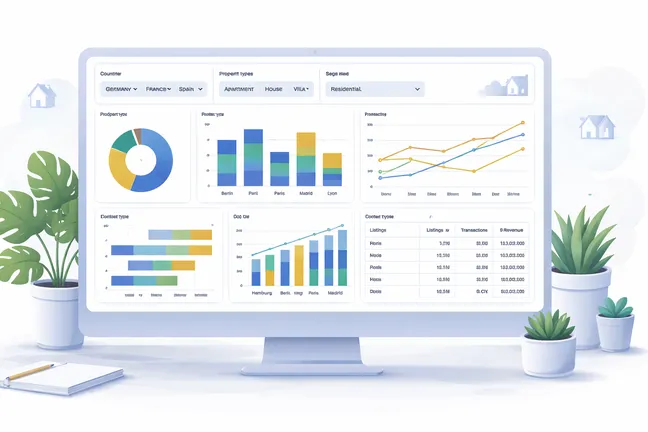
Filters help you control what data is displayed in a dashboard. They allow editors and users to focus on specific subsets of data, such as properties in a certain location, price range, or property type.

This guide explains how filters work, how to add and connect them, and what to expect when using them.
What filters are and how they behave
A filter is a control element that limits the data shown in dashboard components (such as charts and tables).
When a filter is applied:
It affects all connected charts in the dashboard at once
It updates results dynamically based on the selected value(s)
It only works if the underlying data supports the filter field
Example
A dashboard shows property listings across Europe.
Filter: “City”
Selected value: “Lisbon”
Result:
All charts and lists update to show only properties located in Lisbon
Key behavior to understand
Filters do not change the data source itself, only the visible results
Multiple filters can be combined (e.g. city + year)
Filters are usually applied instantly after selection
Adding filters to a dashboard
Filters are added at the dashboard level and can then be connected to one or more datasets.
Steps
Open your dashboard in edit mode
Add a new filter component
Enter a title for the filter
Add the Google Sheets URL in the Data Source URL field
Click the Sync button to load the data
Select the column (control field) that should be used for filtering
Choose the filter type:
Single select
Multi select
Configuring filter options
Each filter type includes configuration settings that define how the filter behaves and appears.
Common settings (all filter types)
Placeholder
Defines the text shown when no value is selected
Custom text can be entered
If left empty, the default text “Please select” is used
Preselected options
Allows you to define default selected values so the dashboard is already filtered when users open the page.
Important
The value must exactly match the value in the data source
This includes spelling, spacing, and full naming
Example
Data source value: “Frankfurt am Main”
Preselected option: “Frankfurt”
Result:
The filter will not be applied because the values do not match
Best practices
Always copy the value directly from the data source when possible
Avoid abbreviations or shortened versions of values
Double-check for formatting differences (e.g. spaces, capitalization)
Multi select filter settings
Multi select filters allow users to choose multiple values at once.
Additional option:
Max. limit
Limits how many values users can select in a multi select filter.
Default value: 10
If left empty, users can select an unlimited number of options
How to use it correctly
Adjust the value based on the number of available options
Do not set a limit higher than the actual number of options
Example
Filter has 5 cities available
Max. limit is set to 10
Result:
The limit has no practical effect
Why it matters
Helps prevent charts from becoming too crowded
Improves readability when working with large datasets (e.g. many cities)
Best practices
Use a limit when the filter contains many options
Keep the number low enough to maintain clear visualizations
Leave the field empty only if unlimited selection is intentional
Single select filter settings
Single select filters allow only one value to be selected.
Typical use case
Selecting a single year (e.g. “2024”)
Choosing one property type at a time
Best practices
Use single select when only one value should be active at a time
Use multi select for broader exploration (e.g. multiple cities)
Always define a clear and user-friendly placeholder
Consider using preselected options to guide users to meaningful default views
Linking filters to datasets
For a filter to have an effect, it must be linked to one or more datasets used in the dashboard.
How linking works
Each filter references a specific field (e.g. “city”)
The same field must exist in the dataset(s) you want to control
Once linked, the filter will apply to all connected components
Example
You have:
A table showing property listings
A chart showing average price per city
If both use a dataset with a “city” field:
A “City” filter can control both components at the same time
Important
If a component uses a different dataset without the same field, the filter will not affect it
Requirements for filters to work
Filters depend on the structure and quality of the underlying data.
Minimum requirements
The dataset must contain the field used in the filter
Field values must be consistent (e.g. “Frankfurt am Main” vs “Frankfurt a. M.” are treated differently)
Limitations and expected behavior
Understanding limitations helps avoid confusion when filters do not behave as expected.
Common limitations
Filters only affect linked datasets, not the entire dashboard automatically
Fields with missing or inconsistent values may lead to incomplete results
Some filters may not support multi-selection, depending on configuration
Performance may decrease with very large datasets
Expected behavior
Components update immediately after a filter is applied
If no data matches the filter, components may show the message "No data av
Filters remain active until cleared or changed
Good examples
Using a “Property type” filter to switch between apartments and houses
Combining “City” and “Price range” to narrow down listings
Linking one filter to multiple components for consistent results
Bad examples
Adding a filter for a field that does not exist in the dataset
Using unclear labels like “Category” instead of “Property type”
Expecting a filter to affect components that are not linked
Working with multiple datasets
When a filter is linked to multiple datasets, it combines (consolidates) all available values from those datasets into a single list of options.
How it works
The filter reads the selected column (e.g. “City”) from all connected datasets
It merges all unique values into one combined list
Duplicate values are automatically removed
Example
You have two datasets:
Dataset 1 (City column)
Berlin
Munich
Hamburg
Dataset 2 (City column)
Berlin
Frankfurt
Hamburg
Filter result:
Berlin
Munich
Frankfurt
Hamburg
Expected behavior when selecting values
When users select a value that exists in only some datasets, not all components will display data.
Example
The user selects “Frankfurt”
Only Dataset 2 contains this value
Result:
Charts connected to Dataset 2 will update and show data
Charts connected only to Dataset 1 will show no data (empty state)
Important considerations
Filters do not guarantee that all components will always display results
Empty charts are expected if the selected value is not available in a dataset
This behavior is correct and does not indicate an error
Best practices
Ensure consistent data across datasets when possible (e.g. same cities)
Avoid linking too many unrelated datasets to the same filter
Clearly structure dashboards so users understand why some components may be empty
You may also be interested in
Summary
Filters are a powerful way to make dashboards interactive and relevant. To use them effectively:
Choose meaningful fields
Ensure your data supports the filter
Link filters correctly to datasets
Keep the user experience simple and clear
When set up properly, filters help users quickly explore real estate data and focus on what matters most.
You may also be interested in
 Updating and maintaining data
 Sorting and color assignment in charts
 Aggregation methods for chart metrics
 Creating a dashboard
- 5 min.
 Creating charts
- 5 min.
You may also be interested in
 Common data issues and how to avoid them
 How to structure data for different chart types
&w=1920&q=75) Preparing data in Google Sheets for data visualizations
Preparing data in Google Sheets for data visualizations File storage, access and setup
You may also be interested in
 Tables
- 5 min.
 Composed charts (line and bar combination)
&w=1920&q=75) Line Charts
Line Charts- 5 min.
&w=1920&q=75) Pie charts
Pie charts- 5 min.
 Floating Bar Charts
- 5 min.
 Bar Charts
- 5 min.
You may also be interested in
 Charts and SEO: how to make data visible and valuable