
Common data issues and how to avoid them
This guideline helps content editors structure datasets correctly in Google Sheets so they can be used reliably for data visualizations on the Engel & Völkers website. Well-prepared data ensures that charts display correctly, update smoothly, and remain easy to maintain.
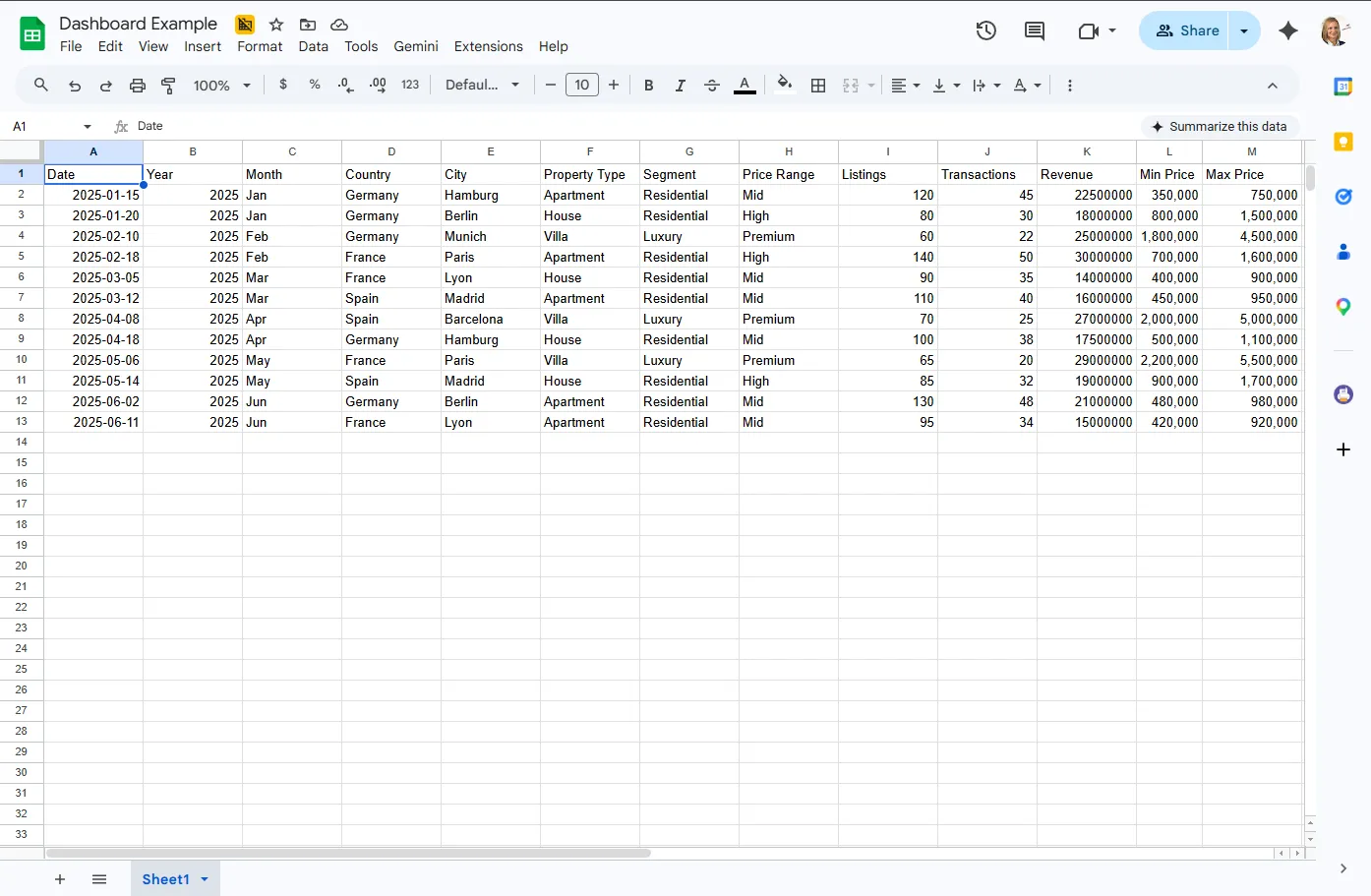
&w=1920&q=75)
Charts on the Engel & Völkers website do not “fix” spreadsheet issues automatically.
The backend reads your Google Sheet as structured data. That means your sheet must follow a few strict rules so charts can be imported and displayed correctly.
Think of your sheet as a clean data table, not as a visually formatted document.
Before creating any chart, make sure your dataset follows these basic rules:
The first row defines the column names for the dataset.
What this means in practice:
Every column name is part of the chart setup
Column names must match exactly when referenced later. It means: you must use the exact same column name everywhere.
Header names are case-sensitive
Keep header names short and clear
Avoid changing names after a chart has been configured
Remove extra spaces at the beginning or end
Good example
| City | Average price (€/m²) |
|---|---|
Hamburg | 7,200 |
Berlin | 6,800 |
Munich | 10,500 |
Column names are not just technical labels. They may appear directly in the chart, for example:
as axis titles (X and Y axis)
in the legend
in tooltips
Always use the same language as the page content.
If your page is in English: City, Average price (€/m²)
If your page is in German: Stadt, Durchschnittspreis (€/m²)
Chart labels are visible to users
Mixed languages look inconsistent and unprofessional
It ensures clarity and better user experience
Each column needs its own unique name.
Bad
| City | Year | Year |
|---|---|---|
Hamburg | 2024 | 2025 |
Berlin | 2024 | 2025 |
Good
| City | Offer year | Closing year |
|---|---|---|
Hamburg | 2024 | 2025 |
Berlin | 2024 | 2025 |
There is no special handling for helper rows.
That means you should not add:
totals rows
note rows
separator rows
unit rows
Bad
| City | Listings |
|---|---|
Hamburg | 120 |
Berlin | 150 |
Total | 270 |
Good
| City | Listings |
|---|---|
Hamburg | 120 |
Berlin | 150 |
Merged cells may make a sheet look cleaner, but they break a reliable table structure.
Use one value per cell and keep the layout simple.
Each column should contain one data type only.
Possible imported types are:
number
string
boolean
mixed
unknown
For editors, the important rule is simple:
text columns should stay text columns
number columns should stay number columns
avoid mixing both in the same column
The backend reads cells based on their actual value type.
| Sheet value | Imported value | What it means |
|---|---|---|
123 entered as a numeric cell | 123 | Can be used as a metric |
"123" entered as text | "123" | Not usable as a metric |
TRUE | true | Boolean value |
FALSE | false | Boolean value |
Empty cell | null | Empty value |
Berlin | "Berlin" | Text label |
Metrics must always be stored as real numeric cells.
This matters because only numeric columns can be aggregated. Supported aggregations include:
sum
average
maximum
minimum
count
count distinct
Avoid in metric columns
n/a
tbd
-
numbers stored as text
There is no automatic sorting.
Important behavior:
table charts keep the original row order
aggregated charts preserve the first-seen order
So if the order matters, sort the data in Google Sheets before using it. Read more about sorting.
When preparing data for charts, it is important to ensure that your file is a true Google Sheets file, not just an uploaded Excel file.
If you upload an .xlsx file to Google Drive and open it, it may still remain an Excel file—even though it looks similar in the interface. This can lead to issues with data visualization components.
Look at the top of the document
If you see a green badge with “XLSX”, the file is still an Excel file
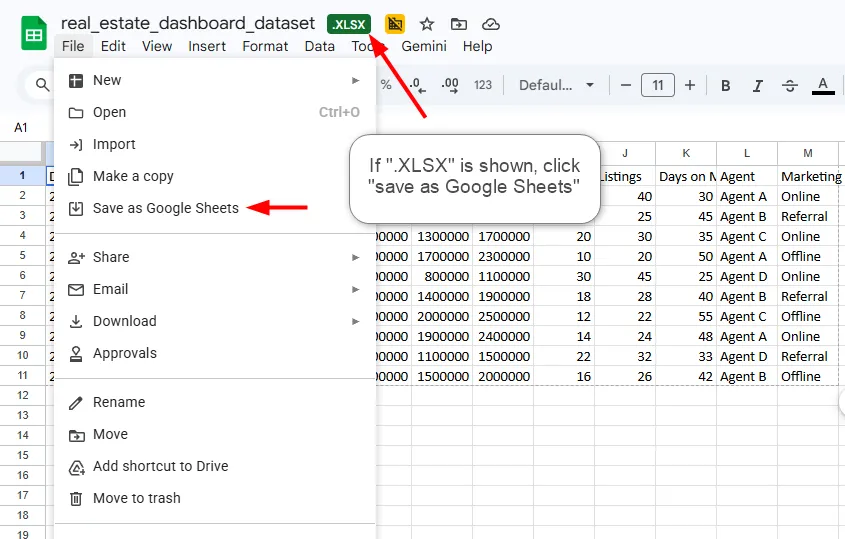
You have two reliable options:
Open the file in Google Drive
Click File → Save as Google Sheets
A new, fully compatible Google Sheets file will be created
Create a new Google Sheets file
Go to File → Import
Upload your Excel file and choose how to import the data
Before you use a sheet for a chart, confirm:
the file is a Google Sheets file (not an uploaded Excel file)
no “XLSX” badge is visible at the top of the document
one header row only
all headers are unique
no merged cells
no total or note rows
consistent value types per column
numeric metrics are real numbers
the row order is already correct
If you see an “XLSX” badge, convert the file via:
File → Save as Google Sheets
This ensures full compatibility with chart components and prevents data issues.
You may also be interested in


You may also be interested in






You may also be interested in


&w=1920&q=75)
&w=1920&q=75)


You may also be interested in